Why Is My iPhone Battery Health Dropping So Fast? 15 Reasons & Fixes
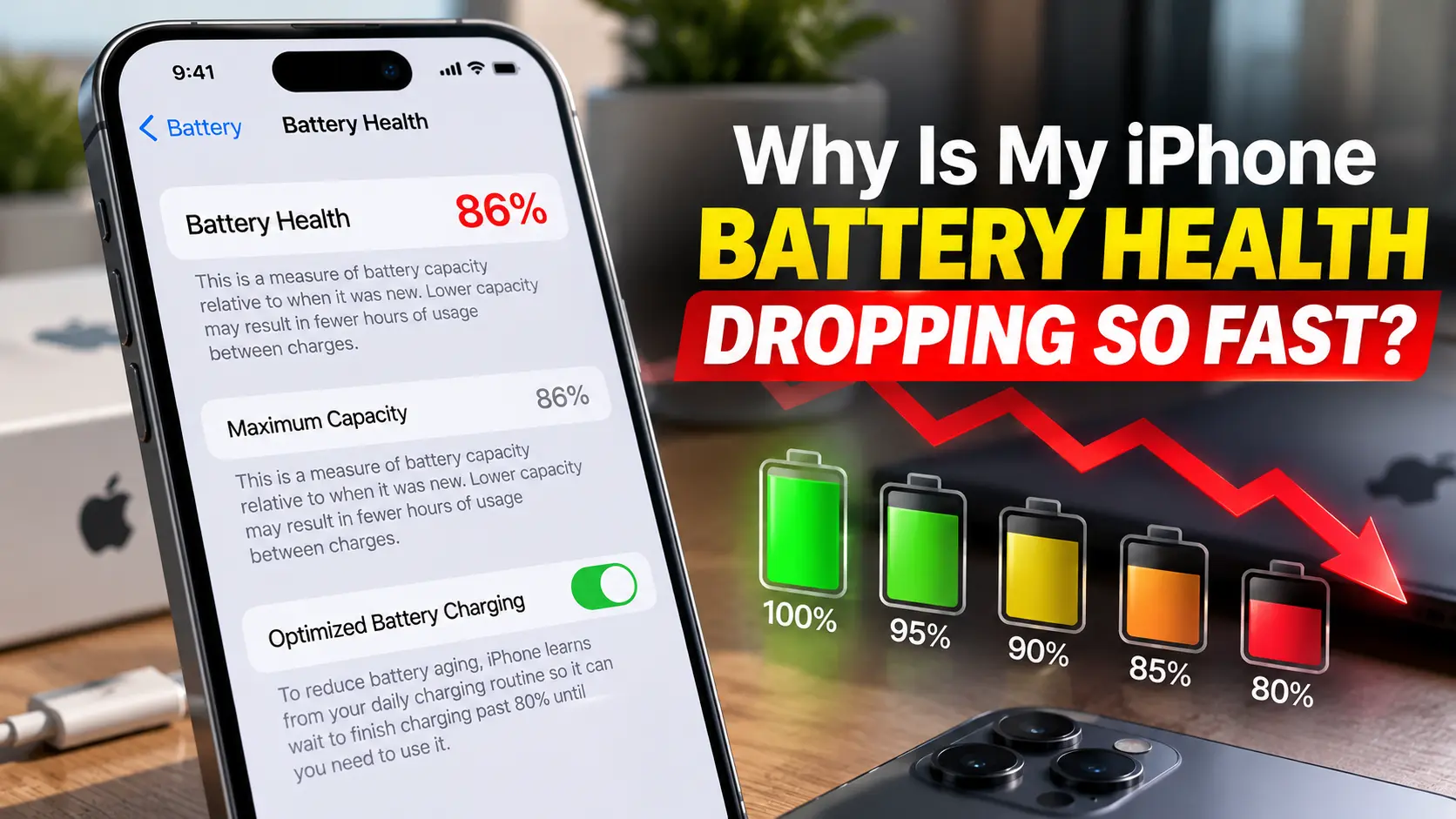
📌 Quick Answer: Your iPhone battery health drops because lithium-ion batteries chemically age over time. Unusually fast decline is usually caused by heat exposure, heavy usage, frequent fast charging, or keeping the battery at 100% for long periods. A single 1% drop is not a reason to panic — look at the trend over months. If the decline is accompanied by poor runtime or unexpected shutdowns, investigate further.
"My iPhone battery health was 100%, then 99%, 98%, 97%... Why is it dropping so fast?"
If you've opened Settings → Battery → Battery Health & Charging and noticed your Maximum Capacity decreasing faster than you expected, you're not alone. It's one of the most common concerns among iPhone users.
Here's the reality: all lithium-ion batteries chemically age. Apple's own documentation explains that batteries are consumable components that lose efficiency over time as their chemical age increases. Maximum Capacity measures your battery's current capacity relative to when it was new — and lower capacity can result in fewer hours of usage between charges.
But that doesn't mean you should ignore a rapid decline. While some degree of battery health decrease is completely normal, unusually fast degradation can be influenced by specific factors — and there's often something you can do about it.
This guide breaks down 15 reasons your iPhone battery health may be dropping quickly, what's actually normal, and exactly what you should do about it.
- 1. Quick Answer
- 2. How Fast Should It Drop?
- 3. 15 Reasons & Fixes
- 4. Is a 1% Drop Normal?
- 5. Why 100% to 99%
- 6. After an iOS Update
- 7. Fast Charging
- 8. Overnight Charging
- 9. Using While Charging
- 10. Heat Effects
- 11. How to Slow It Down
- 12. Percentage Guide
- 13. When to Replace
- 14. How to Check
- 15. Health vs Life
- 16. FAQ
Quick Answer: The 15 Major Causes
Before diving into each cause in detail, here's the overview. Not every 1% drop means something is wrong — but if you're seeing rapid decline, one or more of these factors may be contributing.
| Cause | How It Contributes | Impact Level |
|---|---|---|
| 1. Normal chemical aging | Lithium-ion batteries degrade over time regardless of use | Normal |
| 2. Excessive heat | The #1 accelerator of chemical aging in lithium-ion batteries | High |
| 3. Charging while hot | Combines charging heat with existing device heat | High |
| 4. Heavy gaming | Processor-intensive tasks generate significant heat | Medium |
| 5. Heavy video recording/editing | 4K video and editing push CPU/GPU and generate heat | Medium |
| 6. Frequent GPS/navigation | GPS + screen on + cellular = sustained heat and power draw | Medium |
| 7. High daily battery consumption | More cycles per day accelerates overall aging | Medium |
| 8. Frequent fast charging | Generates more heat than slow charging, especially in hot conditions | Medium |
| 9. Wireless charging heat | Energy loss during transfer produces additional heat | Medium |
| 10. Keeping at 100% for long periods | High state of charge increases chemical stress on the battery | Medium |
| 11. Frequently draining very low | Deep discharges below 20% accelerate wear | Medium |
| 12. High cycle count | More charge cycles = more accumulated aging | Normal |
| 13. Battery age | Batteries age even when not actively used | Normal |
| 14. Battery replacement quality | Third-party or poorly installed batteries may degrade faster | Varies |
| 15. Post-update recalibration | iOS may recalculate maximum capacity after updates | Temporary |
How Fast Should iPhone Battery Health Drop?
There is no universal "1% every X days" rule. Apple designs batteries with specific cycle targets, but real-world degradation depends on your usage, environment, and charging habits.
Here's what Apple officially states:
- iPhone 14 and earlier: Designed to retain 80% of original capacity at 500 complete charge cycles under ideal conditions
- iPhone 15 and later: Designed to retain 80% of original capacity at 1,000 complete charge cycles under ideal conditions
Based on these figures and real-world data, here's a rough practical framework — but remember, these are not guarantees:
| Time / Usage | Typical Health Range | Notes |
|---|---|---|
| 3–6 months | 97–100% | New battery; minimal aging |
| 6–12 months | 92–98% | Some users may see 90–95% depending on usage |
| 1–2 years | 85–95% | Usage and heat exposure become more visible |
| 2–3 years | 80–90% | Approaching Apple's service threshold |
| 3+ years | Below 80% | Battery service likely recommended |
These ranges are based on typical usage patterns. A heavy user who games daily in a warm climate might see faster decline. A light user in a cool environment might see slower decline.
Battery health does not decline in a perfectly linear way. You might see:
- 100% → 99% quickly, then stay at 99% for months
- 98% → 97% → 96% over several weeks
- A long period with no change, then a sudden 2–3% drop
This is normal. Battery Health is an estimate of maximum capacity, not a precise daily measurement.
15 Reasons Your iPhone Battery Health May Be Dropping Quickly
1. Normal Chemical Aging
Why it happens: All lithium-ion batteries chemically age over time. This is unavoidable. Every charge cycle, every exposure to heat, and simply the passage of time contribute to gradual capacity loss.
How it affects aging: The rate is influenced by how you use and charge your iPhone — but the process itself is permanent and irreversible.
Signs you'll notice: Gradual decrease in Maximum Capacity percentage over months.
What you can do: Nothing can stop chemical aging entirely, but you can slow it by managing heat and using sensible charging practices.
2. Excessive Heat
Why it happens: Heat is the single biggest accelerator of lithium-ion battery degradation. Apple warns that exposing your device to ambient temperatures higher than 35°C (95°F) can permanently damage battery capacity.
How it affects aging: High temperatures accelerate the chemical reactions that reduce battery capacity. Even brief exposure to extreme heat can cause lasting damage.
Signs you'll notice: Your iPhone feels hot during normal use, battery drains faster in warm environments, or Maximum Capacity drops after a heat event.
What you can do: Avoid leaving your iPhone in hot cars or direct sunlight. Keep it out of hot environments. If it gets hot during use, let it cool down before charging.
3. Charging While the Phone Is Hot
Why it happens: Charging itself generates heat. If your iPhone is already warm — from gaming, sun exposure, or heavy use — charging adds more heat on top of that.
How it affects aging: The combination of existing heat plus charging heat creates a high-temperature environment that accelerates chemical aging.
Signs you'll notice: The phone becomes uncomfortably warm during charging, or iOS shows a "Charging on Hold" message due to temperature.
What you can do: Let your iPhone cool down before charging. Remove the case during charging. Avoid charging in direct sunlight.
4. Heavy Gaming
Why it happens: Games like PUBG, Call of Duty Mobile, and Genshin Impact are extremely demanding on the processor and GPU. This generates significant heat.
How it affects aging: The heat generated during extended gaming sessions accelerates battery aging — especially if you're gaming while charging.
Signs you'll notice: The phone gets hot during gaming, battery drains faster, and Maximum Capacity may decline more quickly if you game heavily every day.
What you can do: Take breaks during gaming sessions. Don't game while charging. Play in a cool environment. Lower graphics settings to reduce heat.
5. Heavy Video Recording or Editing
Why it happens: Recording 4K video and editing video on-device pushes the CPU and GPU hard, generating heat.
How it affects aging: Sustained high-performance tasks create heat, which accelerates battery aging over time.
Signs you'll notice: The phone gets warm during video recording or editing, and battery drains rapidly.
What you can do: Limit long video recording sessions. Record in 1080p instead of 4K when possible. Let the phone cool down after intensive tasks.
6. Frequent GPS and Navigation Use
Why it happens: GPS navigation keeps the screen on, uses cellular data, and constantly runs location services — all of which generate heat.
How it affects aging: The combination of screen-on time, GPS radio activity, and cellular data creates a warm operating environment.
Signs you'll notice: The phone gets warm during navigation, and battery drains quickly.
What you can do: Use a car mount with ventilation. Don't leave the phone in direct sunlight on the dashboard. Use offline maps when possible.
7. High Daily Battery Consumption
Why it happens: If you're using your iPhone heavily every day, you're going through more charge cycles. Each full cycle contributes to aging.
How it affects aging: More cycles per day means you'll reach higher cycle counts faster, which means faster overall degradation.
Signs you'll notice: You charge multiple times per day, and your cycle count increases rapidly.
What you can do: Reduce unnecessary background activity. Use Low Power Mode when appropriate. Close apps you're not using.
8. Frequent Fast Charging
Why it happens: Fast charging delivers more power in less time, which generates more heat than slow charging.
How it affects aging: Fast charging itself is safe — Apple designs iPhones to support it. However, the heat generated during fast charging, especially in warm conditions, can contribute to accelerated aging.
Signs you'll notice: The phone gets warm during fast charging.
What you can do: Fast charging is fine when used properly. Avoid fast charging in hot environments. Use certified chargers.
9. Wireless Charging and Heat
Why it happens: Wireless charging is less efficient than wired charging — some energy is lost as heat during transfer.
How it affects aging: The additional heat generated during wireless charging can contribute to battery aging, especially if the phone gets noticeably warm.
Signs you'll notice: The phone gets warmer during wireless charging than wired charging.
What you can do: Use a well-ventilated wireless charger. Remove thick cases during wireless charging. Avoid wireless charging in hot environments.
10. Keeping the iPhone at 100% for Long Periods
Why it happens: Lithium-ion batteries experience more chemical stress when kept at a high state of charge for extended periods. Apple explains that Optimized Battery Charging is designed to reduce the time your iPhone spends fully charged.
How it affects aging: Keeping the battery at 100% for hours on end accelerates aging compared to letting it sit at a lower charge.
Signs you'll notice: If you leave your iPhone plugged in at 100% all day, battery health may decline faster over time.
What you can do: Enable Optimized Battery Charging. If you don't need a full charge, consider using the Charge Limit feature (if available on your model) to cap charging at 80%.
11. Frequently Allowing the Battery to Become Very Low
Why it happens: Deep discharges — letting the battery drop below 20% regularly — put additional stress on the battery.
How it affects aging: While occasional deep discharges are fine, regularly draining to 0% or near 0% can accelerate wear.
Signs you'll notice: The phone frequently shuts down due to low battery.
What you can do: Try to keep your battery between 20% and 80% for daily use. Enable Low Power Mode when the battery drops below 20%.
12. High Cycle Count
Why it happens: Every time you use 100% of your battery's capacity — whether in one session or spread across several days — that counts as one charge cycle.
How it affects aging: Higher cycle counts naturally correlate with lower Maximum Capacity. Apple designs batteries to retain 80% capacity at either 500 or 1,000 cycles depending on the model.
Signs you'll notice: Cycle count increasing faster than expected.
What you can do: Check your cycle count in Settings → General → About (iPhone 15 and later). There's no way to "reduce" cycle count — it only increases.
13. Battery Age
Why it happens: Batteries age chemically even when not in use. A battery manufactured years ago will have aged regardless of how much it was used.
How it affects aging: Calendar aging is a real factor, especially for older iPhones or devices that sat unused for long periods.
Signs you'll notice: An older iPhone showing lower Maximum Capacity even with moderate use.
What you can do: There's no way to reverse calendar aging. Battery replacement is the only solution if runtime becomes insufficient.
14. Battery Replacement or Quality Issues
Why it happens: If your battery has been replaced — especially with a third-party battery — the replacement may not meet Apple's specifications.
How it affects aging: Lower-quality batteries may degrade faster or report inaccurate Maximum Capacity readings.
Signs you'll notice: The battery health indicator may disappear, show "Unknown Part," or decline unusually fast after replacement.
What you can do: Use Apple or Apple Authorized Service Provider for battery replacements. If you notice unusual behavior after a replacement, contact the service provider.
15. Temporary Changes After iOS Updates
Why it happens: iOS updates can cause the battery health reporting system to recalibrate Maximum Capacity.
How it affects aging: The actual battery hasn't changed — the reported number may simply be recalculated more accurately after an update.
Signs you'll notice: Battery health appears to drop suddenly after installing an iOS update.
What you can do: Wait a week or two. If the reported capacity stabilizes at a lower number, that's likely a more accurate reading — not actual damage from the update. Apple's iOS 14.5 update specifically introduced a recalibration process for iPhone 11 models.
Is It Normal for iPhone Battery Health to Drop 1% Quickly?
Yes, it can be. A 1% drop by itself does not necessarily indicate a problem.
Here's why: Maximum Capacity is an estimate, not a precise measurement. The battery management system recalculates this value periodically based on usage patterns, temperature history, and other factors.
What might look like a "rapid" drop of 1% could be:
- A recalculation that was already due
- The result of a recent heat event
- A normal step in the battery's gradual decline
- An artifact of the estimation algorithm
What matters more is the trend over time. If your battery health drops 1% and then stays there for months, that's normal. If it drops 1% every week for several weeks in a row, that could indicate an underlying issue worth investigating.
Why Did My iPhone Battery Health Drop From 100% to 99%?
This is one of the most common questions — and the answer is simple: 100% is not a permanent state.
Battery chemistry begins aging from the moment it's manufactured. A drop to 99% is completely normal and is not a reason for concern. It simply means the battery's maximum capacity has decreased by approximately 1% compared to when it was new.
As one analysis of over 1,500 Reddit battery health posts found, 100 and 99 are the two numbers people post about most — and the concern is almost always unwarranted.
What to do: Nothing. A 1% drop from 100% is entirely normal. Keep using your iPhone as you normally would.
Why Is My Battery Health Dropping After an iOS Update?
If you've noticed your Maximum Capacity decrease right after installing an iOS update, there are two separate things happening:
1. Battery runtime may temporarily decrease. After an update, your iPhone may perform background tasks like reindexing photos, re-downloading app data, and optimizing system files. This can cause increased battery drain for a few hours or even a day or two. This is normal and temporary.
2. Maximum Capacity may be recalibrated. iOS updates can trigger a recalibration of the battery health reporting system. Apple's iOS 14.5 update, for example, included a recalibration process for iPhone 11 models that could temporarily change the reported Maximum Capacity.
Important: iOS updates do not damage your battery. The reported percentage may change because the system is recalculating more accurately — not because the update "destroyed" your battery.
What to do: Wait 1–2 weeks after a major iOS update before drawing conclusions about your battery health. If the reported capacity stabilizes at a lower number, that's likely a more accurate reading.
Does Fast Charging Damage iPhone Battery Health?
Short answer: No, fast charging does not automatically damage your battery — provided you're using certified chargers and avoiding excessive heat.
Apple designs iPhones to support fast charging safely. Research and testing, including from MacRumors, has shown that fast charging does not significantly impact long-term battery health when used properly.
The real concern is heat. Fast charging generates more heat than slow charging. If you fast-charge your iPhone in a hot environment — or while it's already warm from gaming — the combined heat can accelerate battery aging.
What to do: Fast charging is fine. Use certified chargers. Avoid fast charging in hot environments. Don't fast-charge while gaming.
Does Charging Overnight Damage iPhone Battery Health?
Short answer: No. Apple confirms that iPhone automatically stops charging when the battery is full, and it's safe to keep your iPhone connected to a charger overnight.
Apple's official documentation states: "You can charge your iPhone every night even if the battery isn't fully depleted. iPhone automatically stops charging when the battery is fully charged, so it's safe to keep your iPhone connected to a charger overnight."
With Optimized Battery Charging enabled, your iPhone learns your daily routine and delays charging past 80% until just before you need it. This reduces the time your battery spends at 100%, which helps slow aging.
What to do: Keep Optimized Battery Charging enabled. Charge overnight as normal. If you want extra protection, consider using the Charge Limit feature (available on iPhone 15 and later) to cap charging at 80% — though research suggests the benefit is modest.
Does Using iPhone While Charging Damage Battery Health?
Short answer: Ordinary use while charging is not automatically harmful. The concern is heat.
If you're scrolling through social media or reading while your iPhone charges, the heat generated is minimal. But if you're gaming, recording 4K video, or using GPS navigation while charging, the combination of charging heat and processor heat can cause your iPhone to get hot.
What to do: Light use while charging is fine. Avoid demanding tasks — gaming, video recording, video editing — while charging. If your phone gets hot during charging, stop using it and let it cool down.
How Heat Affects iPhone Battery Health
Heat is the single most important environmental factor in battery aging. Apple explicitly warns that exposing your device to ambient temperatures higher than 35°C (95°F) can permanently damage battery capacity.
Here's why heat matters so much:
- Lithium-ion batteries are sensitive to temperature. High temperatures accelerate the chemical reactions inside the battery that reduce capacity.
- Heat is cumulative. Even brief exposure to extreme heat can cause lasting damage.
- Charging generates heat. When you combine charging heat with processor heat (from gaming or heavy apps), the temperature can rise quickly.
- Hot cars are dangerous. Interior car temperatures can easily exceed 50°C (122°F), which is far above Apple's recommended maximum.
Apple's recommended operating range: 0°C to 35°C (32°F to 95°F).
What to do: Avoid leaving your iPhone in direct sunlight or a hot car. Don't charge in hot environments. If your iPhone gets hot, let it cool down before charging or using demanding apps.
How to Stop iPhone Battery Health From Dropping So Fast
You can't stop battery aging entirely — but you can significantly slow it down. Here are the most effective steps, in priority order:
1. Avoid Excessive Heat (Most Important)
Keep your iPhone away from hot cars, direct sunlight, and hot environments. Don't charge in hot conditions. If the phone gets warm during use, let it cool down. Heat is the #1 factor in battery aging.
2. Use Optimized Battery Charging
Enable Optimized Battery Charging in Settings → Battery → Battery Health & Charging. This feature learns your routine and delays charging past 80% until you need it, reducing the time your battery spends at 100%.
3. Avoid Charging While Hot
Don't charge your iPhone when it's already warm from gaming, sun exposure, or heavy use. Let it cool down first.
4. Don't Repeatedly Drain to 0%
Try to keep your battery between 20% and 80% for daily use. Occasional deep discharges are fine, but regular draining to 0% accelerates wear.
5. Reduce Heat During Gaming and Heavy Tasks
Take breaks during gaming. Lower graphics settings. Don't game while charging. Avoid using GPS navigation in direct sunlight.
6. Use Reliable Charging Accessories
Stick with Apple or MFi-certified chargers and cables. Cheap, uncertified accessories may generate more heat and may not manage power correctly.
7. Keep iOS Updated
Apple frequently includes battery optimizations in iOS updates. Installing updates when they're stable is generally good for battery health.
8. Don't Leave in Hot Cars or Direct Sunlight
This is one of the fastest ways to damage your battery permanently. Even 30 minutes in a hot car can cause lasting capacity loss.
Battery Health Percentage Guide
This is a practical interpretation — not an official Apple classification.
| Battery Health | General Meaning | What You Should Do |
|---|---|---|
| 100–95% | Excellent — essentially new | Normal use |
| 94–90% | Very good — minimal aging | Monitor normally |
| 89–85% | Generally healthy | Continue normal use |
| 84–80% | More noticeable aging | Consider battery condition and usage |
| Below 80% | Significantly degraded | Consider service/replacement |
These ranges are practical guidelines based on how batteries typically behave. Apple's official recommendation is to consider battery service when Maximum Capacity drops below 80%.
When Should You Replace an iPhone Battery?
Battery health percentage is only one factor. Apple recommends considering replacement when Maximum Capacity drops below 80%. But other symptoms matter just as much:
- Very poor runtime — You can't get through a normal day without charging
- Unexpected shutdowns — Your iPhone turns off even when showing remaining charge
- Battery service message — iOS displays a service recommendation in Battery Health settings
- Severe performance issues — Apps feel sluggish and animations stutter
- Physical battery swelling — The screen or back panel bulges
If you have AppleCare+ and your battery is below 80%, replacement is covered at no additional cost. Without AppleCare, out-of-warranty battery replacement typically costs between $89 and $109 depending on the model.
How to Check Your iPhone Battery Health
Here's how to check your battery health:
- Open Settings
- Tap Battery
- Tap Battery Health & Charging
You'll see Maximum Capacity — this is your Battery Health percentage. You may also see Peak Performance Capability, which indicates whether your battery can deliver enough power to prevent unexpected shutdowns.
On iPhone 15 models and later with iOS 17.4 or later, you can also check your cycle count in Settings → General → About.
Battery Health vs Battery Life: What's the Difference?
These two terms are often confused, but they mean very different things:
🔋 Battery Health
- Measures the condition of your battery
- Shown as Maximum Capacity percentage
- Decreases permanently over time
- Cannot be increased except by replacement
- Affected by heat, charging habits, and cycle count
⏱️ Battery Life
- Measures how long your iPhone lasts on one charge
- Varies day by day based on usage
- Affected by screen brightness, apps, signal strength
- Can be improved by changing settings
- Not the same as battery health
A phone with 95% Battery Health can still have poor battery life if you're gaming heavily in bright sunlight. A phone with 80% Battery Health can still last all day if you're a light user.
Frequently Asked Questions
The most common causes are heat exposure, heavy gaming or video use, frequent fast charging in hot conditions, and normal chemical aging. Battery health also drops faster if you keep your iPhone at 100% for long periods or frequently drain it below 20%. A single 1% drop is usually normal.
A 1% drop in a week is not necessarily abnormal, especially if you've been using your iPhone heavily, charging in hot conditions, or gaming extensively. Battery health does not decline in a perfectly linear way — it can stay unchanged for weeks and then drop. Look at the trend over months, not days.
100% is not a permanent state. Battery chemistry begins aging from the moment it's manufactured. A drop to 99% is completely normal and is not a reason for concern. It simply means the battery's maximum capacity has decreased by approximately 1% compared to when it was new.
iOS updates can cause battery health reporting to recalibrate. The iPhone may also perform background tasks like indexing and optimization after an update, which can temporarily affect battery life. The update itself does not damage the battery — the reported Maximum Capacity may simply be recalculated.
Fast charging is designed to be safe for modern iPhones. Tests show it does not significantly impact long-term battery health when used properly. The real concern is heat — fast charging generates more heat than slow charging, and sustained heat accelerates battery aging.
Wireless charging is safe but generates more heat than wired charging because energy is lost during transfer. If your iPhone gets noticeably warm during wireless charging, that heat can contribute to battery aging over time. Using a well-ventilated wireless charger can help.
No. Apple confirms that iPhone automatically stops charging when the battery is full, and it's safe to keep your iPhone connected overnight. With Optimized Battery Charging enabled, your iPhone learns your routine and delays charging past 80% until you need it.
Gaming itself doesn't directly degrade battery health, but it generates significant heat — especially during extended sessions or while charging. Heat is the primary factor that accelerates chemical aging in lithium-ion batteries. Keeping your iPhone cool during gaming helps minimize the impact.
Ordinary use while charging is not automatically harmful. The concern is heat — if you're gaming or recording 4K video while charging, the combination of charging heat and processor heat can cause your iPhone to get hot, which accelerates battery aging. Light use while charging is fine.
Yes, 85% is generally considered healthy with normal aging. Your iPhone will still deliver peak performance, though you may notice slightly shorter battery life compared to when it was new. It's a good time to start monitoring your battery more closely.
Below 80% is where Apple officially recommends considering battery service. At this level, your battery has significantly degraded and may cause unexpected shutdowns or reduced performance. If you have AppleCare+ and your battery is below 80%, replacement is covered at no additional cost.
Apple recommends considering battery replacement when Maximum Capacity drops below 80%. However, the percentage alone isn't the only factor. If your iPhone shuts down unexpectedly, has very poor runtime, displays a battery service message, or the battery is visibly swollen, replacement may be appropriate even above 80%.
Bottom Line
📌 Key Takeaways:
- Battery health naturally declines — this is normal and unavoidable.
- Fast decline is usually influenced by heat — from gaming, charging in hot conditions, or direct sunlight.
- A single 1% drop is not a reason to panic — look at the trend over months.
- Focus on reducing excessive heat and using sensible charging practices.
- Battery replacement should be considered based on battery health plus real-world symptoms — not the percentage alone.
If you want to know how much battery life your current health percentage actually gives you in real-world use, use our free battery backup calculator for a practical estimate based on your iPhone model.
Calculate Your Backup Time →
Sources & References
- Apple Support — iPhone Battery and Performance
- Apple Support — Charge and Maintain Your iPhone Battery
- Apple Support — About Charge Limit and Optimized Battery Charging on iPhone
- Apple Support — About Recalibration of Battery Health Reporting in iOS 14.5 or Later
- Apple Support — About the Battery and Performance of iPhone 11 and Later
- Apple — Batteries — Maximizing Performance
- MacRumors — Three Years of 80% Charge Limits on iPhone: The Results
- ZDNet — My iPhone's Battery Is Fading Faster Than Apple Promised